Projection Visibility Management
Overview
Projection Visibility Management allows content managers to control which rounds of player projections are visible to Ballr users. All projection data for every round is stored in the system, but only rounds that have been explicitly enabled will show projection data to end users.
This means projections can be ingested and prepared ahead of time for all rounds, while users only see the data you choose to make available.
Key Concepts
| Term | Description |
|---|---|
| Season | A competition season (e.g., NRL 2026) that contains multiple rounds |
| Group / Round | A named grouping of fixtures within a season (e.g., "Round 1", "Round 2") |
| Projections | Predicted player statistics including projected points, minutes, price changes, and ratings |
| Visibility | Whether projection data for a specific round is shown to Ballr users |
How It Works
All projection data is always stored in the system regardless of visibility settings. Visibility controls determine what Ballr users can see:
- Projections Enabled for a round: Users see full projection data (projected points, minutes, price, ratings, etc.)
- Projections Disabled for a round: Users see base player stats only. Projection fields are hidden.
When a new round is added, projections are disabled by default. A content manager must explicitly enable projections for each round.
Visibility Comparison: Foundry vs Ballr
This section demonstrates how projection visibility settings affect what end users see in Ballr, while content managers in Foundry always have full access to all projection data.
Example Scenario: Round with Projections Disabled
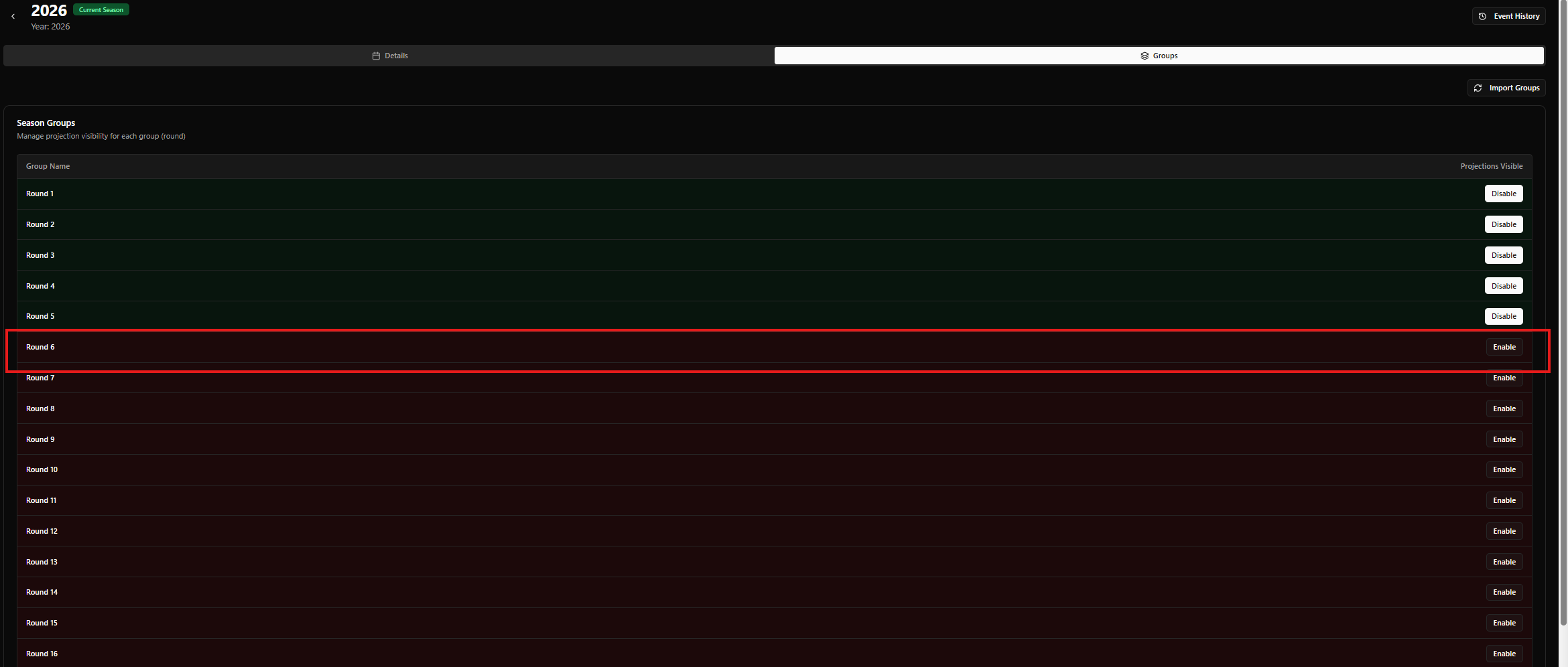
Step 1: Season Groups Tab (Foundry)
The screenshot below shows the Season Groups tab where a content manager can see that Round 5 has projections disabled (indicated by the dark/red background and "Enable" button).
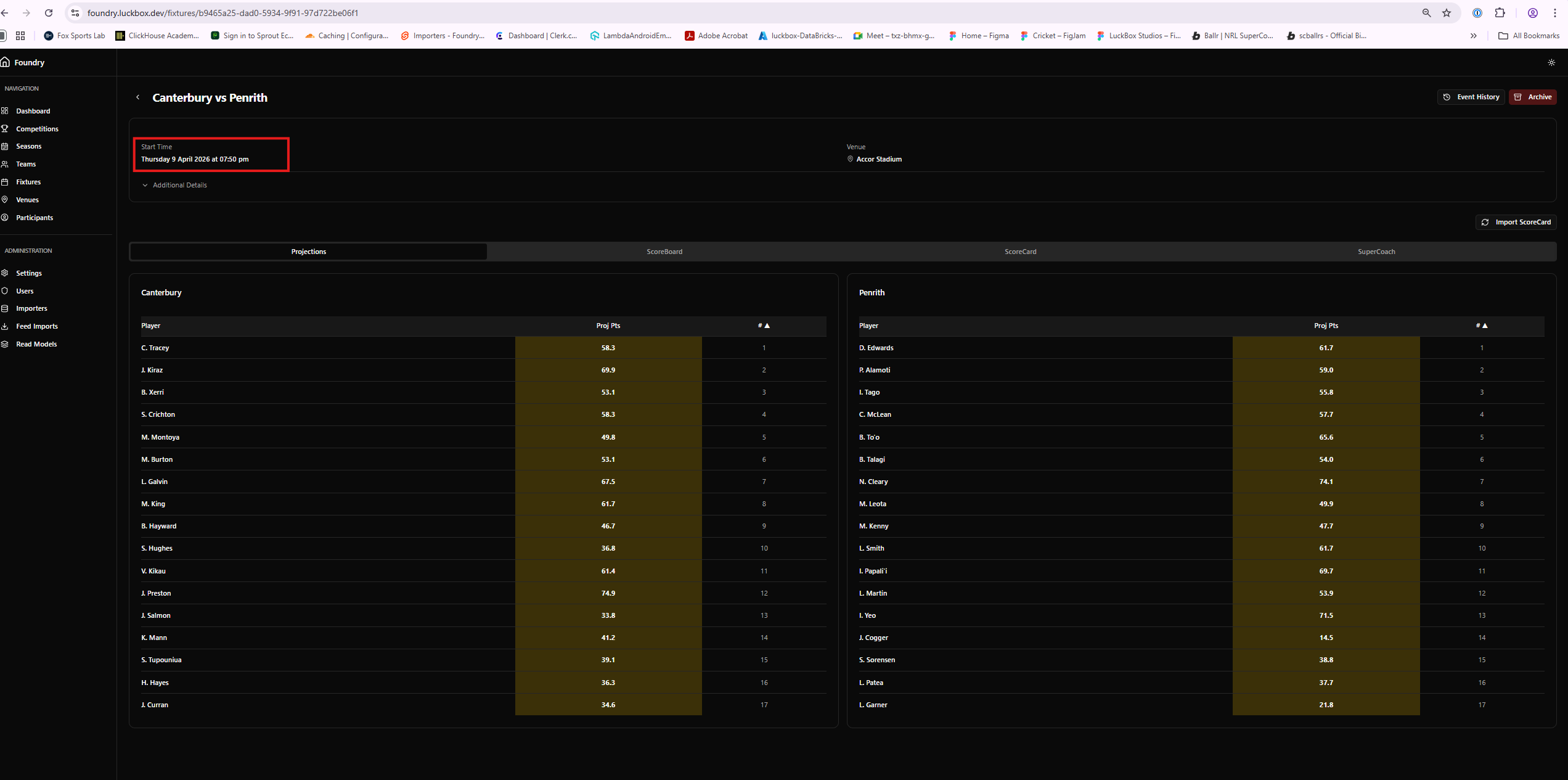
Step 2: Fixture View in Foundry (Projections Always Visible)
Even though Round 5 has projections disabled, content managers viewing a fixture from Round 5 in Foundry can still see all projection data. This allows verification of data quality before enabling projections for end users.
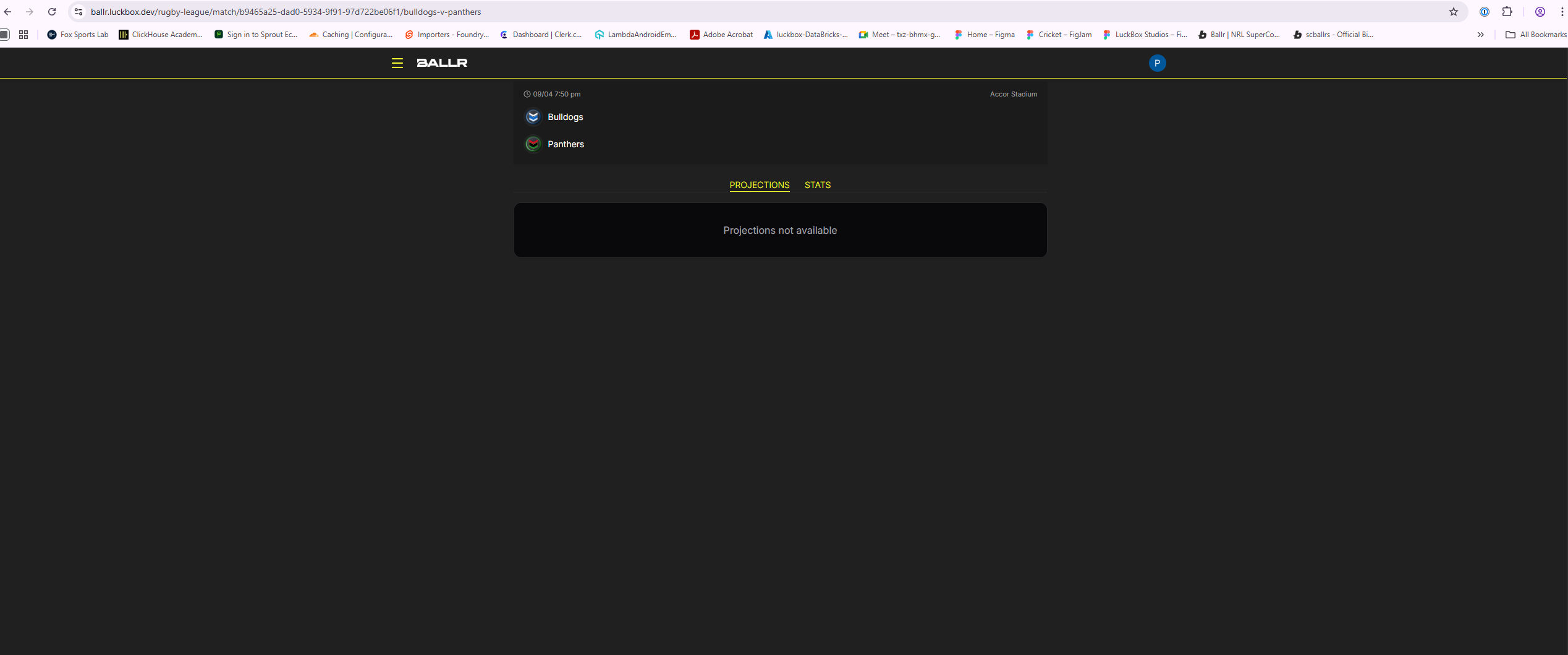
Step 3: Same Fixture in Ballr (Projections Hidden)
When Ballr users view the same Round 5 fixture, they see no projection data. Only base player information and actual stats are displayed. Projection fields are completely hidden from the interface.
Example Scenario: Round with Projections Enabled
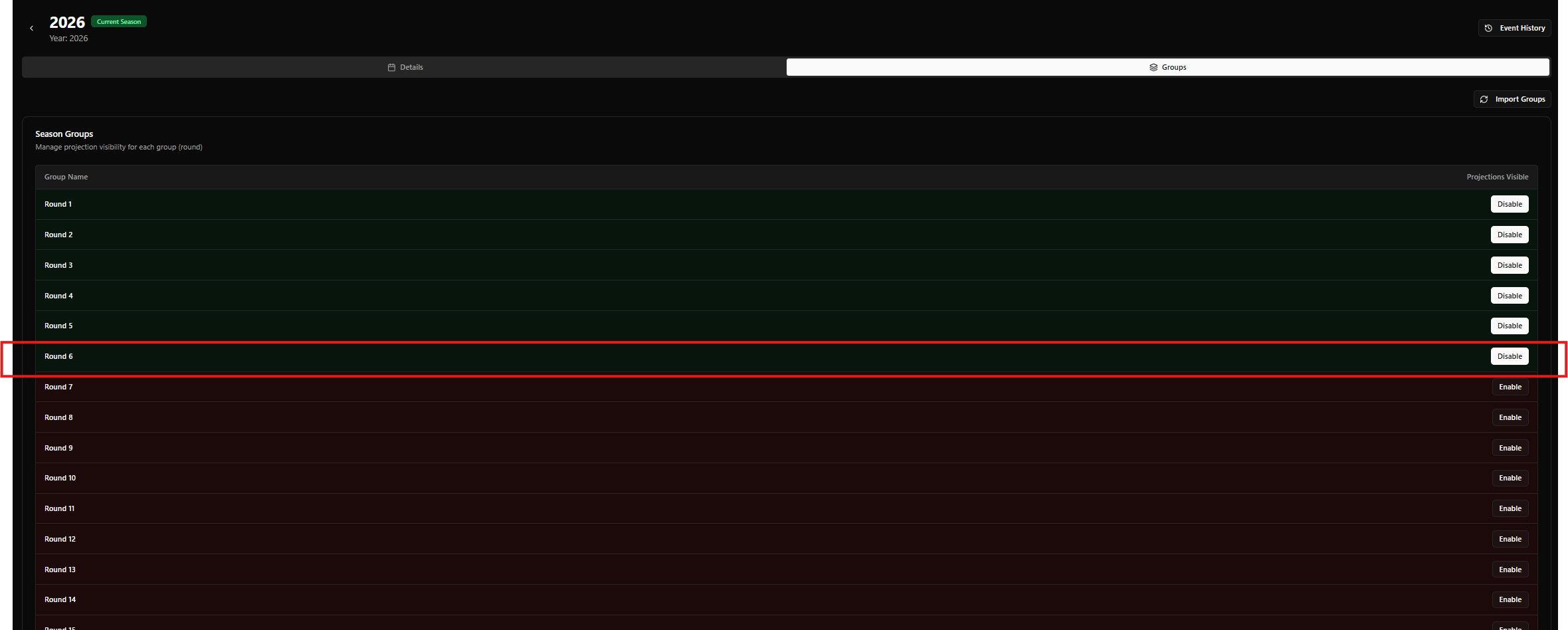
Step 1: Season Groups Tab (Foundry)
The screenshot below shows Round 4 with projections enabled (indicated by the green background and "Disable" button).
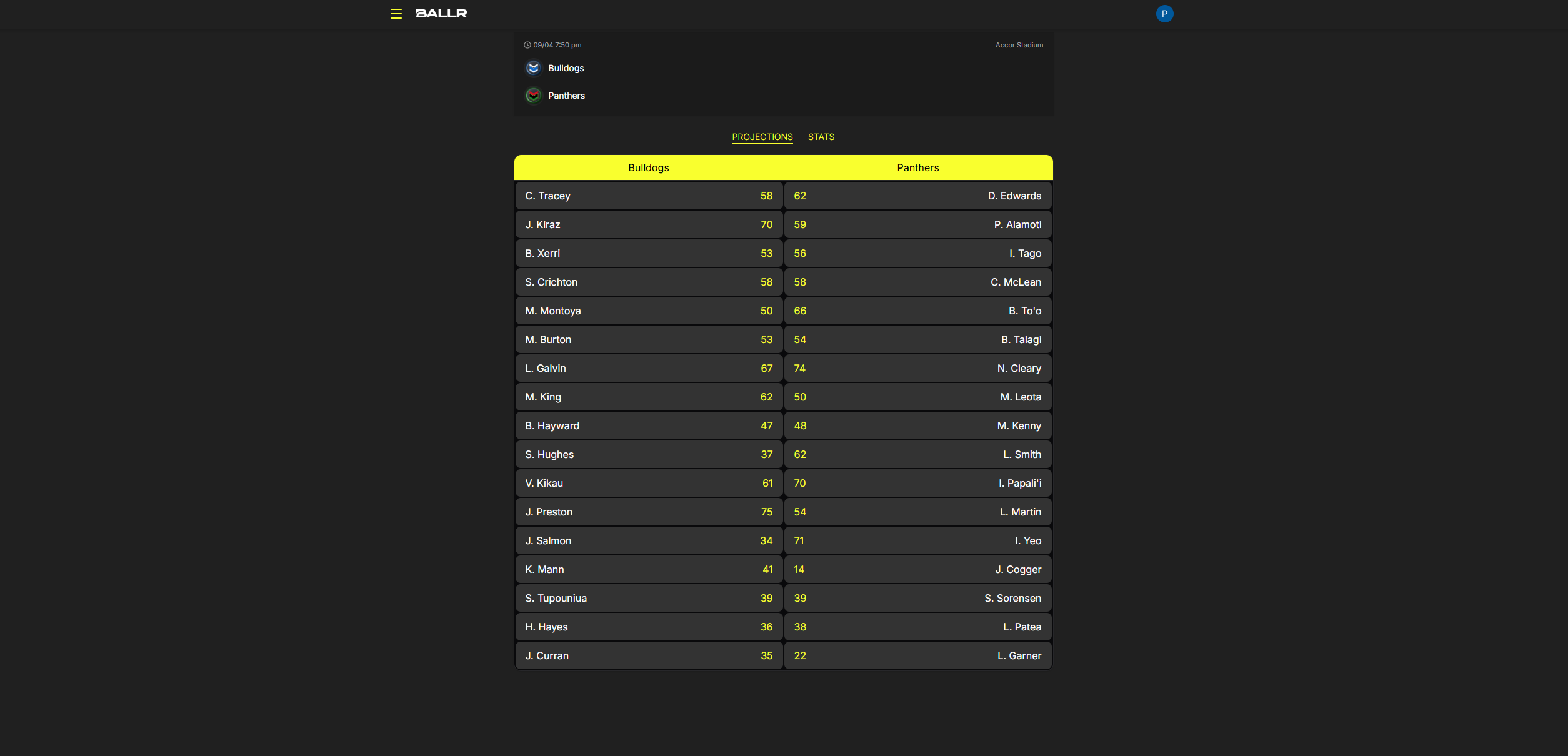
Step 2: Fixture View in Ballr (Projections Visible)
When Ballr users view a fixture from Round 4 (which has projections enabled), they now see full projection data including projected points, minutes, price delta, break even, ratings, and other predictive statistics.
Key Takeaways
| View | Projections Disabled | Projections Enabled |
|---|---|---|
| Foundry (Content Managers) | All projection data visible | All projection data visible |
| Ballr (End Users) | No projection data shown | Full projection data shown |
Important: Visibility settings control what Ballr users see. Content managers in Foundry always have full visibility of all data for verification and quality control purposes, regardless of the visibility setting.
Managing Round Visibility
Accessing the Groups Tab
- Navigate to the Seasons page in Foundry
- Select the season you want to manage (e.g., "2025")
- Click the Groups tab on the season detail page
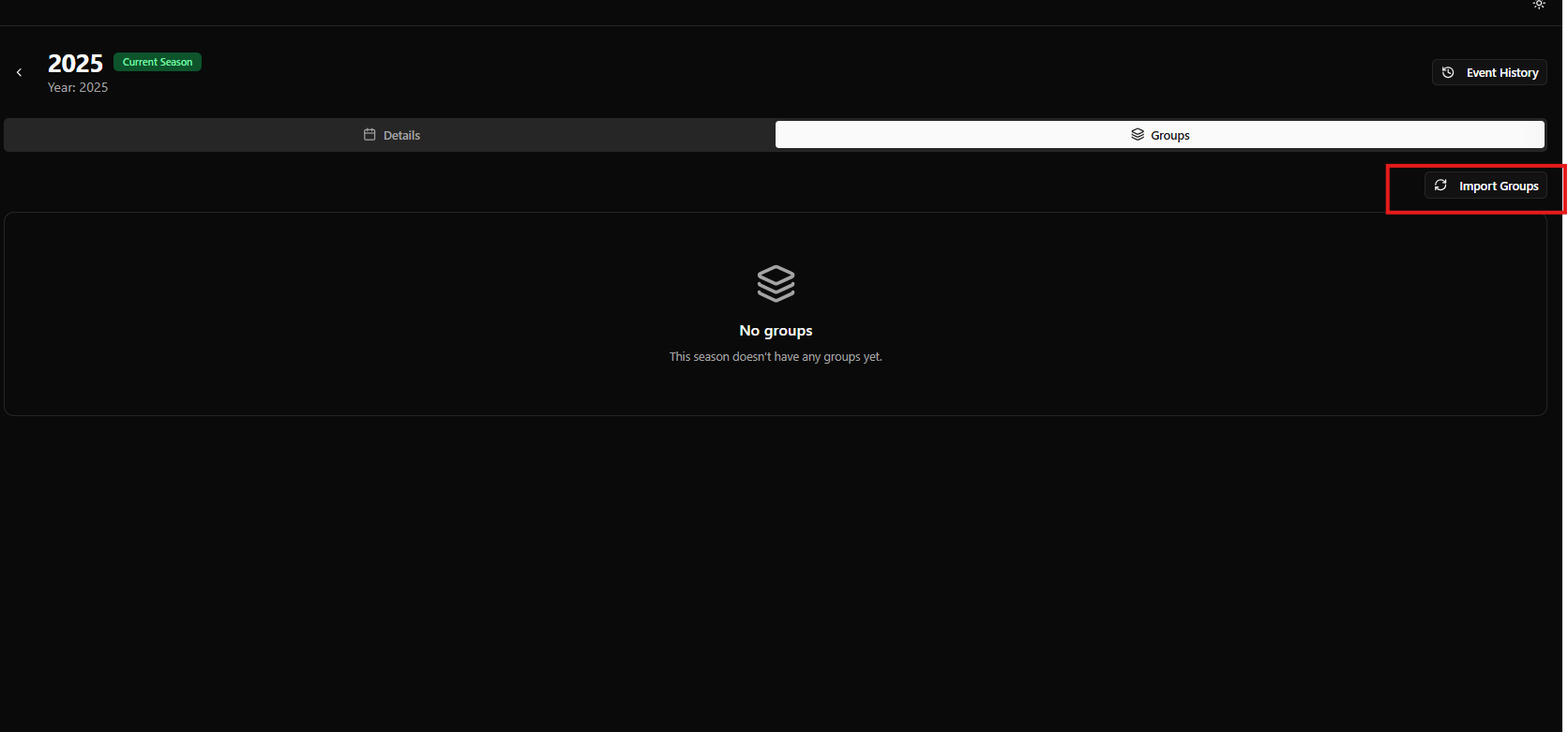
If the season has no groups registered yet, you will see the empty state shown below. Use the Import Groups button in the top-right corner to populate the groups from existing fixture data.
Understanding the Groups Table
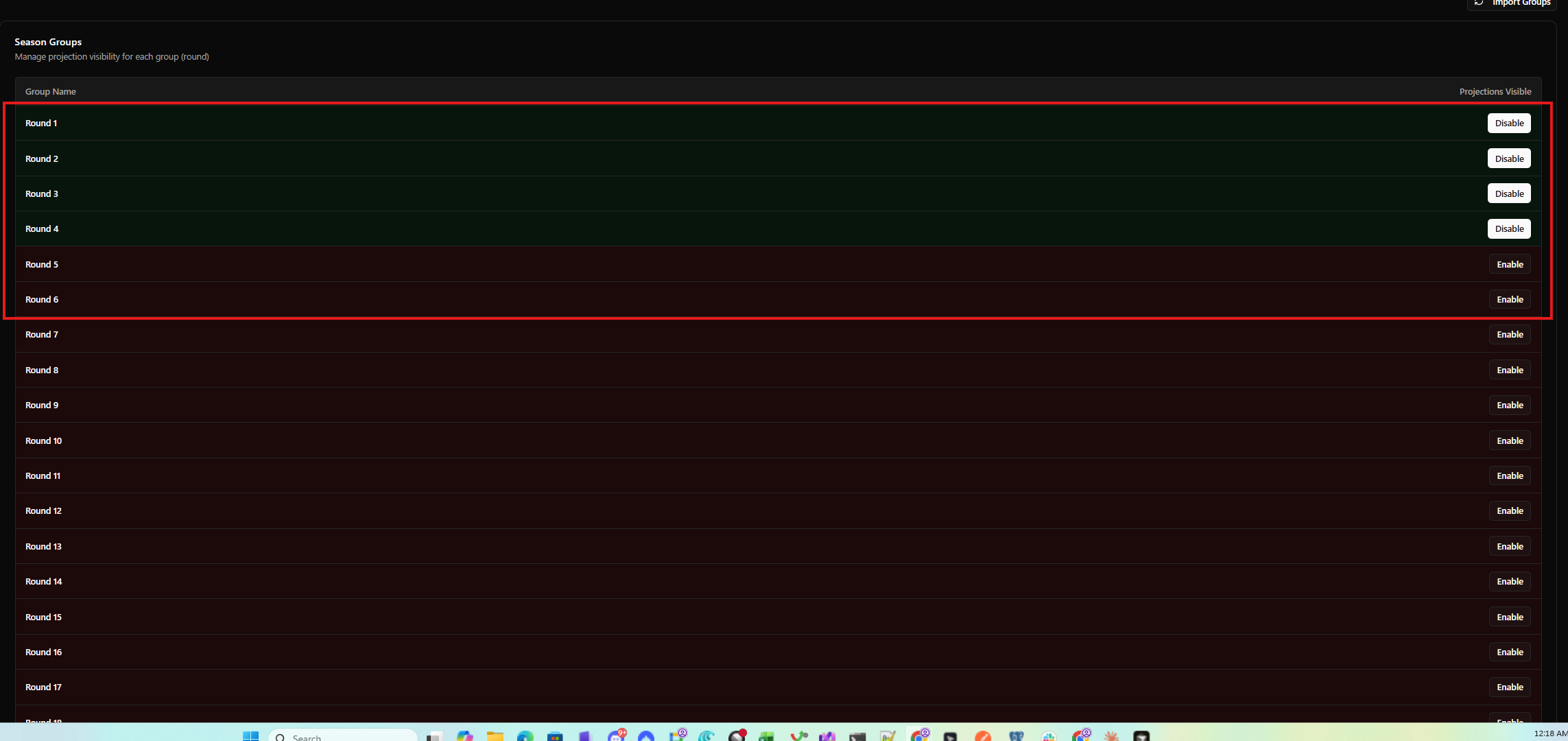
Once groups are imported or automatically registered, the Groups tab displays a table listing all rounds for the season. The screenshot below shows a season with Rounds 1-17, where Rounds 1-4 have projections enabled and Rounds 5+ are still disabled.
Each row in the table shows:
| Column | Description |
|---|---|
| Group Name | The round name (e.g., "Round 1", "Round 2") |
| Projections Visible | Toggle button — Disable (projections currently on) or Enable (projections currently off) |
Row colours indicate status at a glance:
- Green background: Projections are enabled for this round. Users can see projection data. The button shows Disable.
- Dark/red background: Projections are disabled for this round. Projection data is hidden from users. The button shows Enable.
Enabling Projections for a Round
- Go to the Groups tab on the season detail page
- Find the round you want to enable (it will have a dark background and an Enable button)
- Click the Enable button on that row
- The button will show "Saving..." while the change is processed
- The row will update to green and the button will change to Disable
Disabling Projections for a Round
- Go to the Groups tab on the season detail page
- Find the round you want to disable (it will have a green background and a Disable button)
- Click the Disable button on that row
- The button will show "Saving..." while the change is processed
- The row will update to dark/red and the button will change to Enable
Changes take effect immediately. Cache is automatically invalidated so Ballr users will see updated data on their next request.
Importing Groups
If the groups for a season have not been registered yet (e.g., the season was created before this feature was deployed), you can manually import them. The empty state is shown in the screenshot under Accessing the Groups Tab above.
How to Import Groups
- Go to the Groups tab on the season detail page
- Click the Import Groups button (top-right corner)
- The system will scan all fixtures for the season, extract distinct group names, and register them
- All imported groups start with projections disabled
- A success or error message will be displayed
- The table will populate with all discovered rounds, as shown in the Groups Table above
Groups are also automatically registered when new fixtures are created with a group assignment, so manual import is typically only needed for backfilling existing seasons.
What Ballr Users See
When projections are enabled for a round, Ballr users see the full set of projection data across all relevant screens:
| Screen | Visible Projection Data |
|---|---|
| Player Stats List | Projected Points, Projected Minutes, Projected Price, Price Delta, Break Even, Over 60/100 Points chance, Rating |
| Player Profile | Projected key stats for the latest round |
| Player Comparison | Full projection data for compared players |
| Team View | Projected Points and Projected Rating on roster items |
When projections are disabled for a round, all projection fields on these screens are hidden. Base player statistics (actual points scored, historical data, etc.) remain visible.
Typical Workflow
A typical weekly workflow for managing projections:
- Projections are ingested for all upcoming rounds automatically via the data pipeline
- Before the round starts, a content manager navigates to the season's Groups tab
- Enable projections for the upcoming round by clicking the Enable button
- Ballr users can now see projection data for that round
- After the round completes (optional), disable projections for that round if you want to hide the projection data retrospectively
Pre-Season Setup
- Ensure all fixtures are created for the season
- Navigate to the season's Groups tab
- If groups are not showing, click Import Groups to register them
- All groups will start with projections disabled
- Enable projections round-by-round as the season progresses
Frequently Asked Questions
Q: What happens if I enable projections for a future round? A: Users will be able to see projection data for that round immediately. There is no restriction on which rounds can be enabled at any time.
Q: Can I enable projections for multiple rounds at once? A: Currently, each round must be toggled individually. Click Enable on each round you want to make visible.
Q: Will disabling projections delete the data? A: No. Disabling projections only hides the data from Ballr users. The data remains stored and can be made visible again at any time by re-enabling.
Q: How quickly do changes take effect? A: Changes take effect immediately. The cache is automatically invalidated when visibility is toggled, so users will see updated data on their next page load or request.
Q: Do I need to import groups every time? A: No. Groups are automatically registered when fixtures are created with group assignments. The Import Groups button is only needed for backfilling seasons that existed before this feature was enabled.
Q: What role do I need to manage projection visibility? A: You need the Content Manager role to enable or disable projections for groups.
Q: Does this affect the data pipeline or imports? A: No. Data ingestion continues for all rounds regardless of visibility settings. Visibility is purely a display control.
Troubleshooting
| Issue | Solution |
|---|---|
| Groups tab is empty | Click Import Groups to register groups from existing fixtures |
| Toggle button is stuck on "Saving..." | Refresh the page. If the issue persists, check your network connection |
| Changes not reflecting for Ballr users | Cache invalidation is automatic but may take a moment. Ask the user to refresh their page |
| A round is missing from the list | The round's fixtures may not have a group assignment. Check the fixture data in Foundry |